
The Invoicing feature allows users to send a bill to a client/customer when there is a balance due for items sold or services rendered. The document will be in PDF form and will contain the QR scan code for the client/customer to pay using digital currency.
You can access Invoicing from the side menu under Payment Solution > Invoices.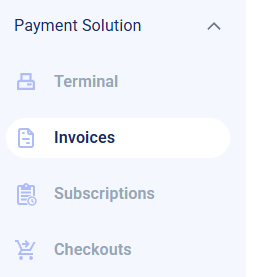
To send an invoice, use the following steps:
- Click + Create Invoice at the top right of the Invoices page.
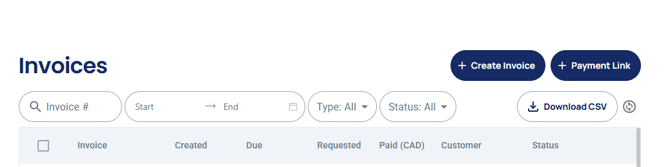
- Select the Request Currency the invoice will be billed in.
- Select a client/customer from the dropdown or click "Add new customer" to enter the information of the client/customer the invoice will be sent to.
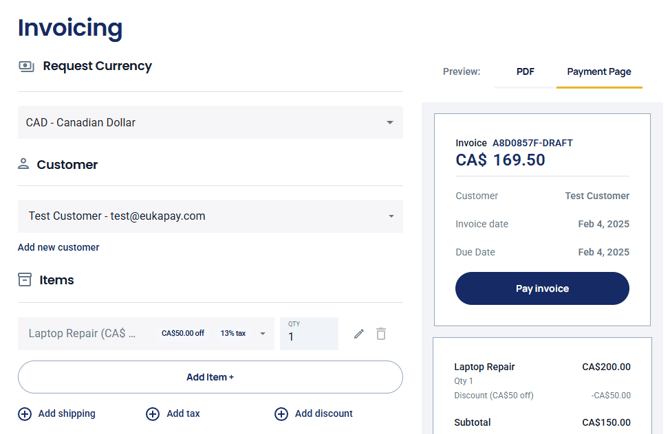
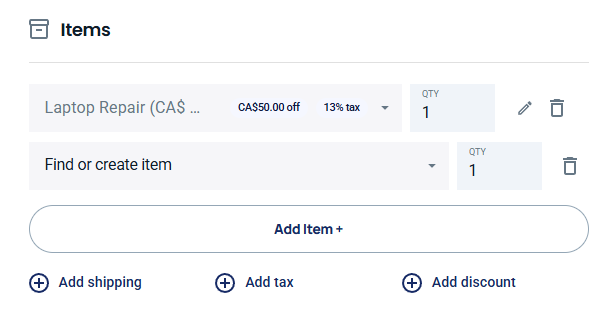
- Under Items, use Find or create item to pick a saved item or add a new one, then set the quantity. Shipping, tax and discounts can be added here as well.
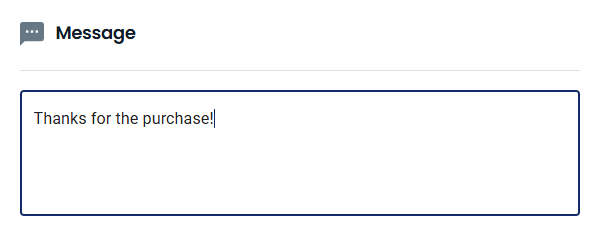
- Add a personal message you would like the customer to receive along with the invoice.
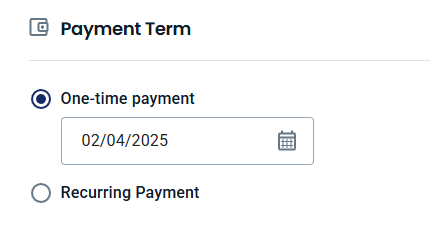
- Under Payment Term, choose One-time payment and select the due date, or choose Recurring Payment.
- Use the PDF and Payment Page preview tabs to check what your customer will see.
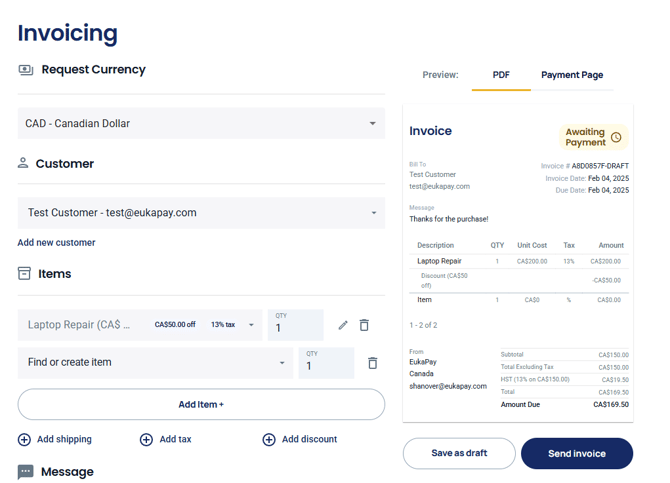
- Click Send invoice, or Save as draft to finish later.
🔗
Send your first invoice from your dashboard by navigating to "Invoices" tab or following this link: https://app.eukapay.com/merchant/invoice