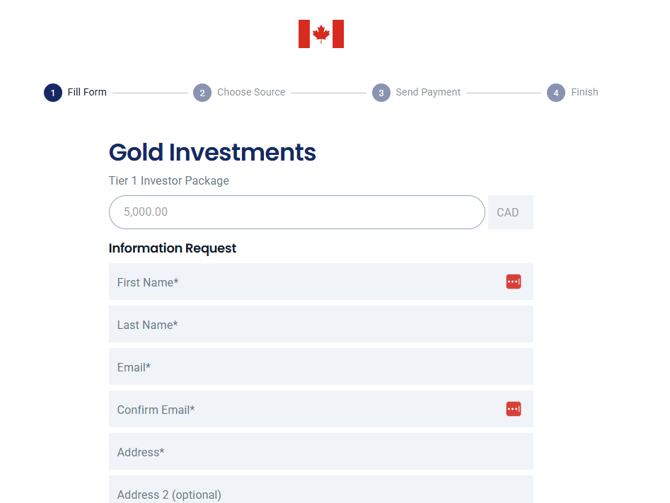
You can add your company logo to payout forms using the Branding option in settings.
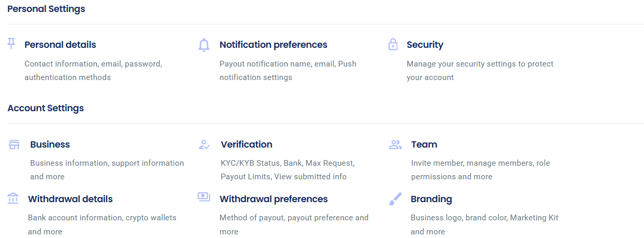
- Login to your EukaPay account, then select Settings from the top right on your screen.

- On the Settings screen, navigate to the Account Settings section and select "Branding". From here, select the "Edit" option to the right of your screen, then the Upload button to begin customizing your checkout screen
- Next you may choose the desired logo you want your clients to see during checkout.
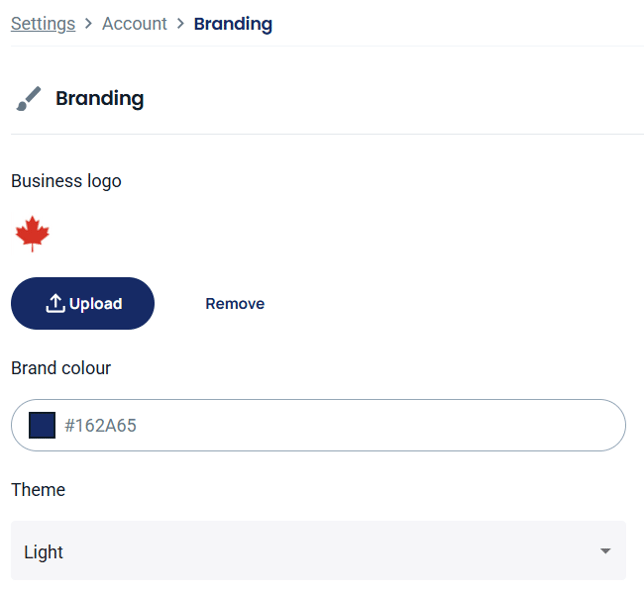
*Note: Image being uploaded must have a maximum size of 500kb.
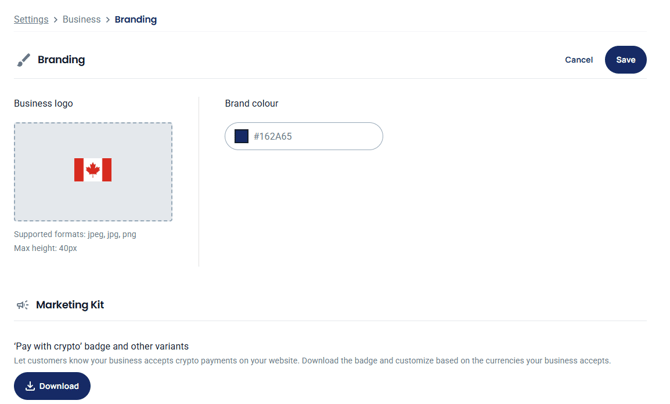
- Next select the Brand color you want to be the main theme during checkout. You can also choose a Theme (Light or Dark) and check the result in the Customer pay preview. Select "Save" to add your logo and custom color to your payment form. (Optional: You may also download a marketing kit with pre-made payment buttons and logos)
- You can now go to Checkouts, open a checkout and click View Checkout to get a preview of the final product that will go on your website.