
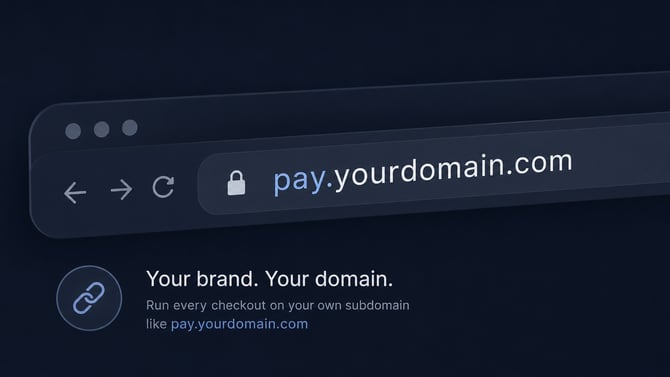
Who can use this
Merchants with access to Settings → Business → Custom domain in the EukaPay dashboard.
What you need before you start
- A subdomain you control (not your root/apex domain).
- Supported: pay.example.com, checkout.example.com
- Not supported: example.com (root domains)
- Access to your DNS provider (Cloudflare, GoDaddy, Namecheap, Route 53, etc.) to add DNS records.
How to set up your custom checkout domain
Step 1: Add your subdomain
- Go to Settings → Business → Custom domain.
- Click + Add custom domain.
- Enter your subdomain only (hostname), e.g. pay.yourcompany.com — no https://, path, or port.
- Continue to the DNS instructions.
Step 2: Add DNS records at your domain provider
Copy the exact records shown in the dashboard (CNAME and TXT). Each merchant gets a unique TXT value.
You will add two records:
|
Type |
Name / host (example) |
Purpose |
|
CNAME |
Your subdomain label (e.g. pay) |
Routes traffic to EukaPay hosting |
|
TXT |
asuid.pay (for pay.example.com) |
Proves you own the domain |
Your dashboard shows the precise name, value, and target for your hostname. Paste them exactly as shown.
Step 3: Wait for verification
- EukaPay auto-checks your DNS about every 5 minutes while your domain is pending or in a failed state.
- While status is Pending verification, the dashboard may refresh about every minute.
- You can retry to run a check immediately after you update DNS.
Step 4: When status is Active
- The badge shows Active.
- Current checkout domain in settings uses your custom hostname.
- New payment links use https://your-subdomain/....
- Visitors on the default EukaPay app URL for checkout may be redirected to your custom domain when it is active.
Domain statuses
|
Status |
What it means |
|
Pending verification |
Domain is saved; we are waiting for correct DNS or for propagation to finish. |
|
Active |
CNAME and TXT checks passed; checkout is served on your custom subdomain. |
Troubleshooting
CNAME record missing
What to fix: Add the CNAME record at your DNS provider on the correct host (usually the subdomain label, e.g. pay). Confirm you saved changes and that propagation has had time to complete.
Wrong CNAME target
What to fix: Edit the CNAME value/target so it matches the hosting address in your dashboard (not an A record to your own server, and not a different third-party host).
TXT verification record missing or incorrect
What to fix: Add or update the TXT record on the host shown in the dashboard (typically asuid.[your-subdomain-label]). Copy the full token from the dashboard with no extra spaces or quotes. If you replace your custom domain, use the new TXT value.
Common DNS provider tips
- Cloudflare: Use DNS only (grey cloud) for the CNAME if proxying causes unexpected resolution.
- Conflicting records: Remove old A/CNAME records on the same hostname that point elsewhere.
- Subdomain vs root: Records must be on the subdomain you entered, not only on the root domain.
- TTL: Lower TTL before changes can speed up updates; propagation still varies by provider.
Replace or remove your custom domain
Replace
- Open the ⋮ menu on your domain row → Replace domain.
- Enter the new subdomain and update DNS with the new instructions (TXT token may change).
Remove
- Open the ⋮ menu on your domain row → Remove domain.
- Confirm removal.
FAQ
Can I use my root domain (example.com)?
No. Use a subdomain such as pay.example.com.
Do customers see an error if DNS is not ready?
Checkout stays on the default EukaPay URL until status is Active. Customers are not shown merchant DNS error messages.
How often does EukaPay check DNS?
About every 5 minutes automatically, plus optional retry in the dashboard.
Can one domain be used on two EukaPay accounts?
No. Each hostname can only be registered to one merchant account.
I fixed DNS but still see Error.
Wait for propagation (up to 48 hours), or contact support with your subdomain and screenshots of your DNS records.